- Type regedit to run Registry Editor
- Navigate to HKEY_LOCAL_MACHINE\SOFTWARE\Microsoft\Windows NT\CurrentVersion\Winlogon\SpecialAccounts\UserList.
- Create folder for SpecialAccounts or UserList in the registry order above if it's not found. Right click on the Winlogon folder in registry editor and select new folder to create the folder.
- Create a new DWORD(32 bits for 32bits vista os) key with value 0 (as default) under UserList registry folder. Name the key as the vista login you would like to hide.
- For example, if your vista login name is Belacan. Then the new key should be belacan (case in-sensitive).
- The DWORD value 0 indicates hiding. You can set the value to 1 if you would like to show it in the future.
Showing posts with label vista. Show all posts
Showing posts with label vista. Show all posts
Sunday, May 17, 2009
How to hide vista users at Welcome screen


Disable Vista 'Need your permission to continue'
Whenever a user performs what window think it potentially risky operation, the following message is displayed to warn and asked for confirmation.
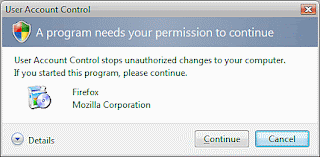
How to disable it?

How to disable it?
- Open control panel, type user account in the search box.
- Click on 'Turn User Account Control (UAC) on or off.
- Uncheck the the tickbox and restart window.
- Voila. No more annoying pop-up.
Subscribe to:
Posts (Atom)